

Planner
The Planner prepares capacity for recurring or known future demand. It learns how many application instances an application normally needs in each calendar window, presents the evidence as forecasts and suggestions, and turns operator-approved actions into temporary minimum instance counts.
The Planner is available only with the Predictive scaler:
PLT_SCALER_ALGORITHM_VERSION=v2The Planner does not replace live scaling.
| Component | Question | Horizon | Output |
|---|---|---|---|
| Predictive scaler | How many instances will be needed when another instance becomes ready? | Seconds | Live target replica count |
| Planner | How many instances are normally needed in this calendar window? | Days and weeks | Forecasts and suggested minimum instance counts |
| Custom schedule | What capacity does an operator already know will be needed? | A known future event | Operator-defined minimum instance count |
A scheduled value is a minimum, not a fixed replica count. V2 can always scale above it when live demand requires more capacity.
Planner view
Section titled “Planner view”The Planner tab combines recent history, future forecasts, and active schedules in one calendar. Weeks run horizontally, time windows run vertically, and each cell contains the instance count for that window.
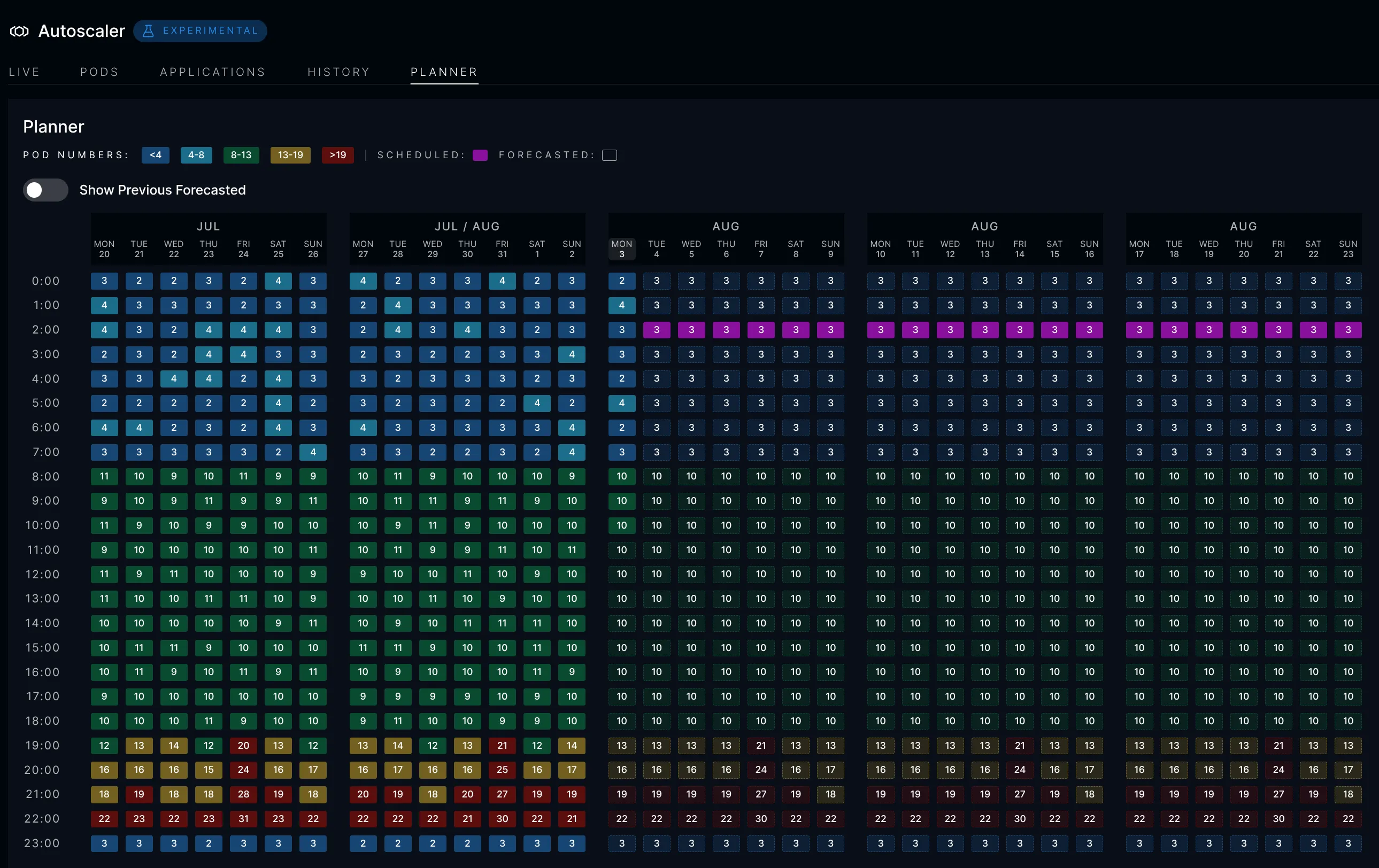
| Cell treatment | Meaning |
|---|---|
| Solid | Capacity observed in a historical window |
| Translucent with a dashed border | Forecast capacity |
| Purple | Floor created by an accepted suggestion or custom schedule |
| Diagonal split | Previous forecast compared with the capacity later observed |
The five color bands are calculated from the application’s own capacity distribution. The legend always shows the actual instance ranges, so a high-capacity window stands out whether an application normally runs 3 instances or 100.
Enable Show Previous Forecasted to compare historical forecasts with later observations. This makes repeated under- or over-prediction visible instead of replacing old forecasts with a newly calculated history.
| Term | Meaning | Default size or horizon |
|---|---|---|
| Time slot | Small interval in which ICC collects live instance targets | 5 minutes |
| Time window | Planning unit built from several time slots | 60 minutes |
| Prediction | Forecast instance requirement for one future window | Up to 60 days |
| Suggestion | Recurring rule proposed by the pattern predictor | Requires operator acceptance |
| Custom schedule | One-time or recurring rule created by an operator | Operator-defined |
| Scheduled slot | Concrete occurrence produced from an active schedule | One planning window |
| Minimum instance count | Temporary minimum applied while a scheduled slot is active | Clamped by hard limits |
How history becomes a plan
Section titled “How history becomes a plan”The end-to-end flow is:
| Stage | Input | Result |
|---|---|---|
| 1. Collect | V2’s raw required count and actual replicas | Time-slot samples |
| 2. Aggregate | Time-weighted slot percentiles | Historical planning windows |
| 3. Model | Windows for the same local time across days | Baseline and recurring calendar patterns |
| 4. Forecast | Baseline plus matching patterns | Future instance predictions |
| 5. Review | Recurring patterns and their evidence | Operator suggestions |
| 6. Schedule | Accepted suggestions and custom events | Concrete scheduled slots |
| 7. Apply | Active scheduled slot plus hard limits | Temporary minimum for V2 |
1. Record required and actual capacity
Section titled “1. Record required and actual capacity”The Planner learns capacity rather than request count. The same request rate could represent cache hits, database work, or expensive server-side rendering; each has a different effect on a Node.js process.
For every live decision, V2 provides two values:
- required instances (
unclamped): the scaler’s raw target before hard limits, per-decision step limits, and cooldowns; - actual instances: replicas running at that moment.
The unclamped value preserves unmet demand. For example, if a hard maximum holds an application at 20 instances while the workload needs 27, the Planner records 27 as required and 20 as actual.
2. Build planning windows
Section titled “2. Build planning windows”ICC first calculates time-weighted percentiles for required and actual instances in each time slot. Time weighting prevents a brief target from having the same influence as a value that lasted for most of the slot.
At the end of a time window, ICC selects the configured percentile from every included slot, averages those values, and stores one historical record. The default p50 reflects typical capacity; a higher percentile produces a more conservative plan.
3. Separate baseline from calendar patterns
Section titled “3. Separate baseline from calendar patterns”Each time of day is modeled independently using up to one year of its history. The predictor establishes a robust rolling baseline, then looks for recurring deviations associated with calendar scopes, such as a particular weekday. It repeatedly separates baseline and pattern contributions so a Friday peak does not inflate the everyday baseline.
This produces two useful kinds of behavior:
| Model result | Meaning | Example |
|---|---|---|
| Baseline | Capacity normally needed in this window | Every day, 17:00–18:00: 13 instances |
| Scoped pattern | Recurring exception to the baseline | Every Friday, 17:00–18:00: 21 instances |
The forecast for a future window combines its projected baseline with the patterns matching that date. Suggested instance counts are kept within the application’s configured hard range.
4. Refresh forecasts
Section titled “4. Refresh forecasts”By default, the Planner writes predictions for the next 60 days. They are regenerated:
- when the scaler leader starts;
- after midnight in the configured cluster timezone;
- after application scaling limits change;
- when
POST /applications/:applicationId/predictionsrequests an application refresh.
Forecasts remain informational. They do not change scaling until an operator accepts a suggestion or creates a custom schedule.
Review suggestions
Section titled “Review suggestions”Open Suggestions & Scheduled Actions to review detected recurring demand. Each card describes the recurrence, proposed minimum instance count, applicable timezone, and confidence derived from its historical consistency.
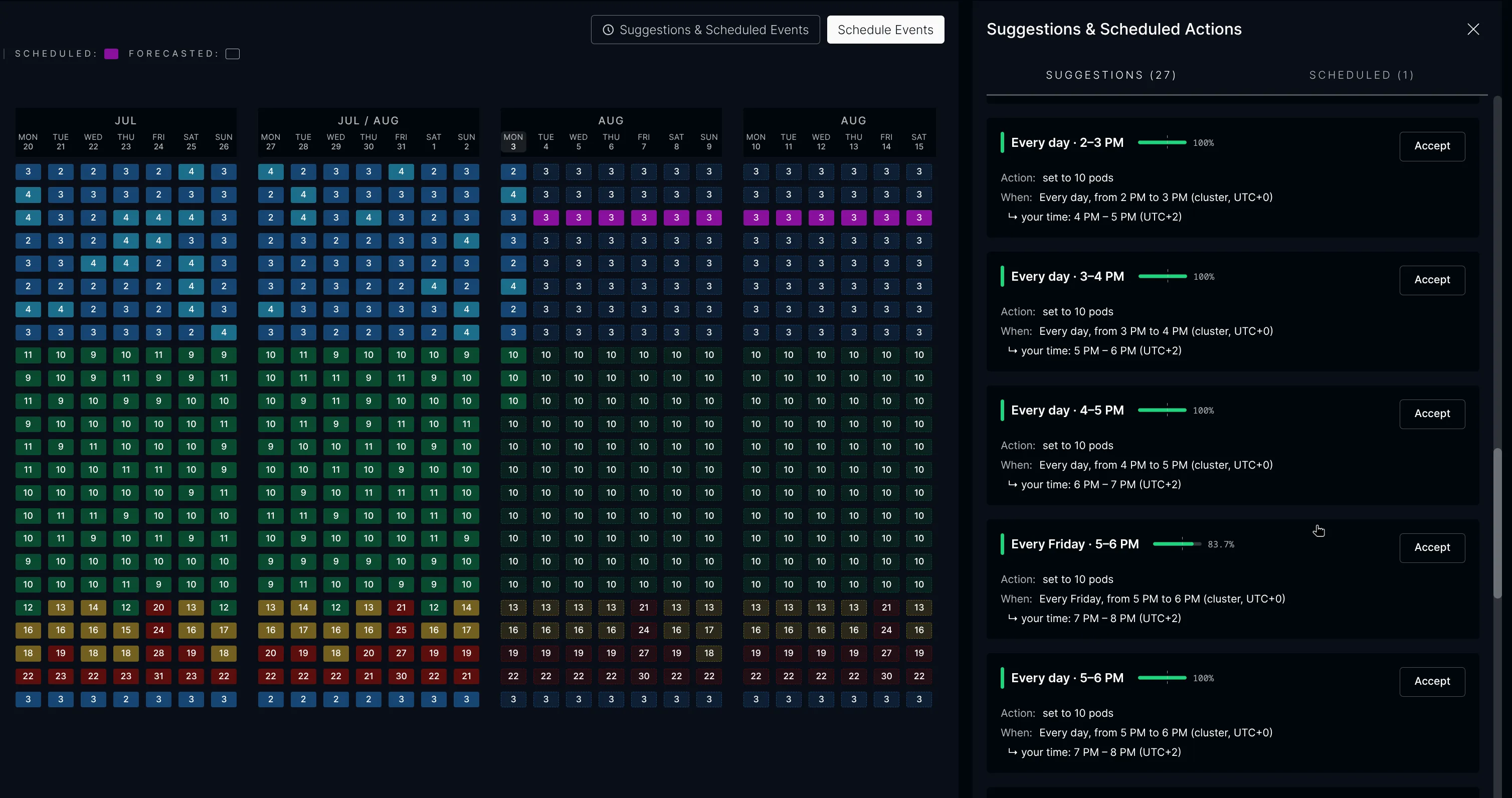
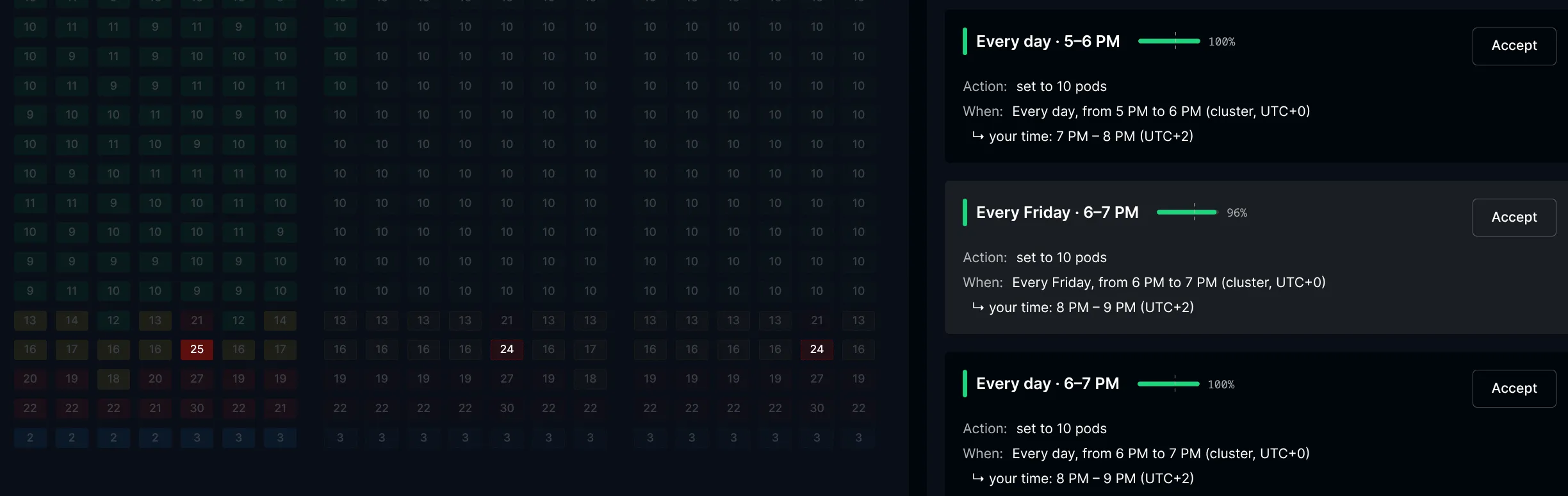
The complete floor is shown, not a delta that must be combined manually. If the everyday baseline is 13 instances and Friday needs 8 additional instances, the Friday suggestion says 21 instances.
Selecting a suggestion highlights its historical occurrences and affected future windows while dimming unrelated cells.
The details view breaks past occurrences into the baseline, the selected pattern’s contribution, and contributions from other simultaneous patterns. This explains why some historical totals can exceed the floor proposed by the selected suggestion.
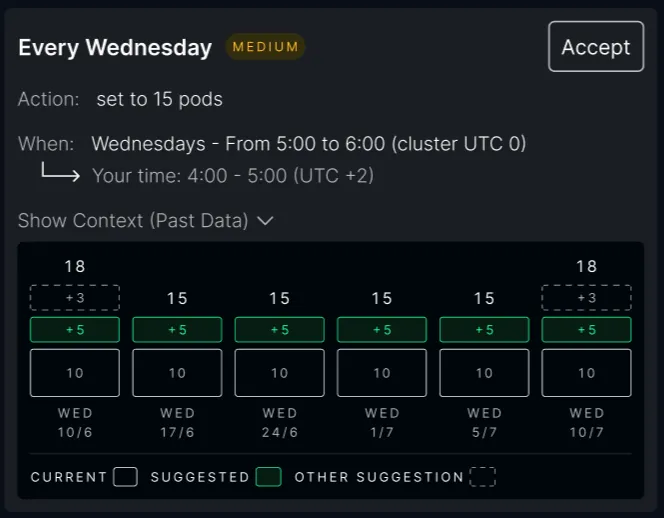
Timezone handling is explicit: the recurrence remains anchored to the cluster calendar, while the UI also displays the equivalent time for the current operator.
Suggestion lifecycle
Section titled “Suggestion lifecycle”| State | Effect on scaling | What happens on the next model update |
|---|---|---|
| Suggested | None | Candidate may be replaced by new analysis |
| Accepted | Creates an active recurring schedule | Accepted value remains unchanged |
| Cancelled | Schedule becomes inactive | Record remains as history; a current candidate may appear again |
| Expired | No longer active | Old record remains as history |
Acceptance is intentionally a snapshot. Nightly forecasting may change the candidate, but it cannot silently change a production floor an operator already approved.
Add a custom schedule
Section titled “Add a custom schedule”Use a custom schedule when upcoming demand is known but absent from history, such as a promotion, broadcast, migration, or planned batch job.
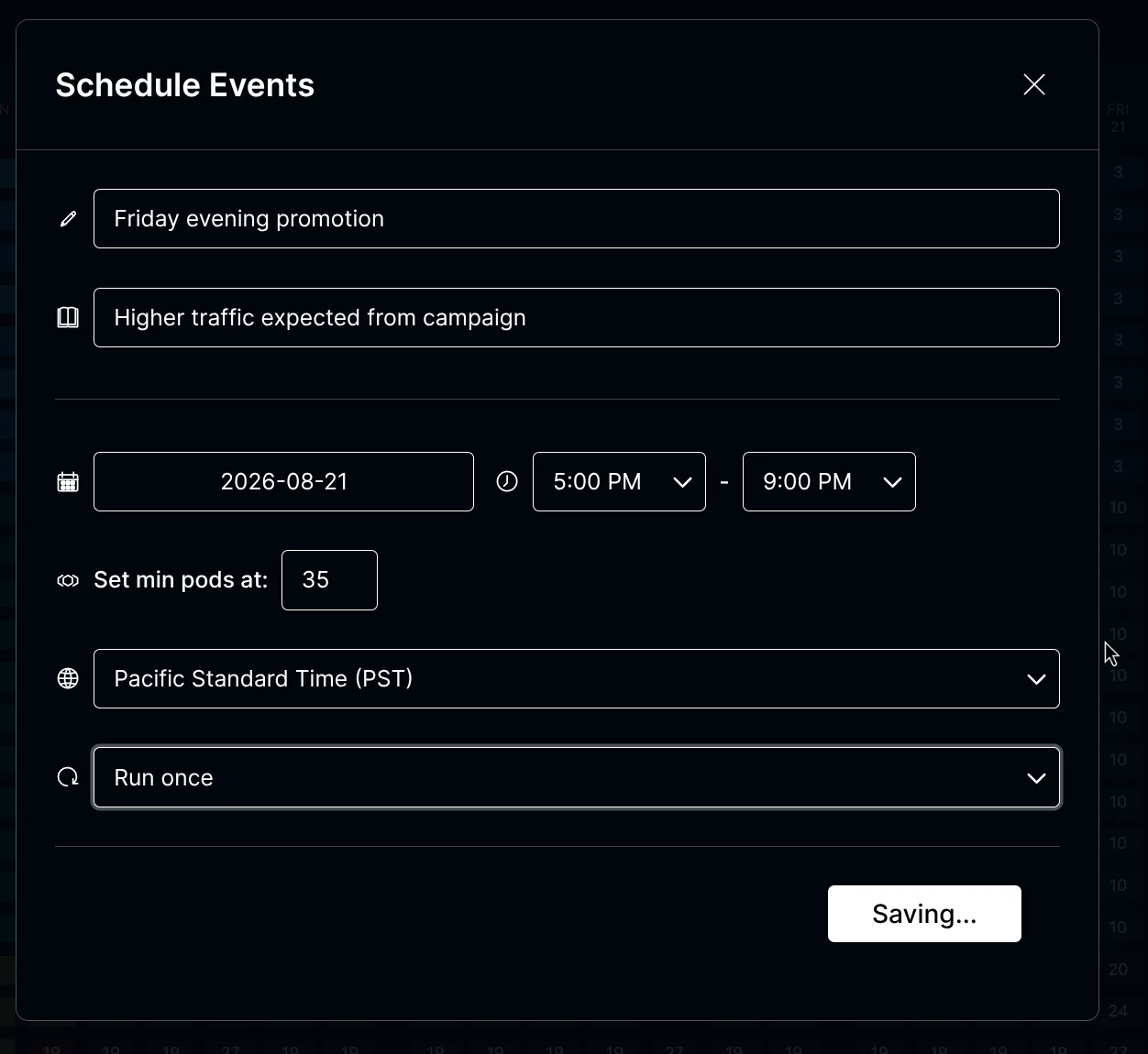
A custom schedule contains:
- a name;
- start time and duration;
- IANA timezone;
- minimum instance count;
- an optional iCalendar RRULE recurrence.
Start time, duration, and schedule windows
Section titled “Start time, duration, and schedule windows”Custom schedules use the window configured by PLT_SCALER_TIME_WINDOW_MINUTES (60 minutes by default):
startsAtmust fall on a time-window boundary intimezone, with zero seconds and milliseconds.durationMinutesmust be at least one time window, a whole multiple of the time-window size, and no more than 1,440 minutes.- Each occurrence is expanded into one scheduled slot per covered time window.
With the default 60-minute window, a start at 17:00 and a duration of 240 minutes produce four scheduled windows: 17:00–18:00, 18:00–19:00, 19:00–20:00, and 20:00–21:00. A 17:30 start is invalid. If the window is configured to 30 minutes, 17:30 is valid and a 90-minute duration covers three windows.
The timezone’s UTC offsets must also be divisible by the configured time-window size. Recurring occurrences retain their local time across daylight-saving changes.
Schedule a one-time event
Section titled “Schedule a one-time event”Omit rrule to create exactly one occurrence. This request keeps at least 35 instances running from 17:00 until 21:00 UTC on August 21, 2026:
curl -X POST "$ICC_URL/scaler/user-schedules" \ -H "authorization: Bearer $DEPLOY_TOKEN" \ -H "content-type: application/json" \ -d '{ "name": "Product launch", "startsAt": "2026-08-21T17:00:00.000Z", "durationMinutes": 240, "timezone": "UTC", "minPods": 35 }'Setting "rrule": null has the same effect as omitting it.
Schedule recurring events with RRULE
Section titled “Schedule recurring events with RRULE”Add rrule to repeat the event. startsAt supplies the recurrence’s earliest date and local start time; durationMinutes applies independently to every occurrence.
| Schedule | RRULE |
|---|---|
| Every day | FREQ=DAILY |
| Every weekday | FREQ=WEEKLY;BYDAY=MO,TU,WE,TH,FR |
| Every Friday | FREQ=WEEKLY;BYDAY=FR |
| Every second Friday | FREQ=WEEKLY;INTERVAL=2;BYDAY=FR |
| The 15th of every month | FREQ=MONTHLY;BYMONTHDAY=15 |
| The last day of every month | FREQ=MONTHLY;BYMONTHDAY=-1 |
| Every Friday, stopping after eight occurrences | FREQ=WEEKLY;BYDAY=FR;COUNT=8 |
For example, add this field to the previous request to repeat the four-hour floor every Friday:
"rrule": "FREQ=WEEKLY;BYDAY=FR"Use startsAt, rather than BYHOUR, BYMINUTE, or BYSECOND, to set the occurrence time. RRULEs that override the time or produce intervals that do not align with the configured time-window size are rejected.
Cancel a custom schedule
Section titled “Cancel a custom schedule”Cancel it without deleting its history:
curl -X DELETE "$ICC_URL/scaler/user-schedules/$SCHEDULE_ID" \ -H "authorization: Bearer $DEPLOY_TOKEN"The application-specific Scaler API used by ICC also exposes Planner history, forecasts, suggestion details, acceptance, and cancellation under /scaler/applications/:applicationId/.
How overlapping schedules are resolved
Section titled “How overlapping schedules are resolved”The Planner turns accepted suggestions and custom events into one schedule format. The scheduler expands every recurrence into concrete planning windows and chooses one floor for each window.
| Priority | Schedule type | Example |
|---|---|---|
| 1 | Custom schedule | One-time promotion or operator-defined recurrence |
| 2 | Scoped learned pattern | Friday 17:00–18:00 |
| 3 | Daily learned baseline | Every day 17:00–18:00 |
At the same priority, the more specific calendar rule wins. If specificity is equal, the higher minimum wins.
For example:
| Matching schedules | Winning floor |
|---|---|
| Daily 13 + Friday 21 | 21 on Friday; 13 on other days |
| Daily 13 + Friday 21 + promotion 35 | 35 during the promotion |
| Promotion ends while Friday rule remains | Falls back to 21 |
The winning value is always clamped to the application’s hard scaling limits.
How the floor is applied
Section titled “How the floor is applied”The scheduler maintains a concrete plan for the configured forecast horizon. On each scheduler tick, ICC:
- finds the scheduled slot active for the application;
- writes its minimum as a temporary soft limit in Valkey;
- combines the soft floor with the application’s hard range;
- asks the application controller to scale immediately when replicas are below the effective minimum.
The resulting behavior is:
| Hard range | Scheduled floor | Live V2 demand | Effective target |
|---|---|---|---|
| 3–40 | None | 8 | 8 |
| 3–40 | 21 | 8 | 21 |
| 3–40 | 21 | 25 | 25 |
| 3–25 | 35 | 20 | 25 |
When the window ends, the soft floor is removed and V2 can scale down according to live demand. Temporary limits expire automatically if scheduler updates stop, preventing a stale floor from remaining active indefinitely.
See Scaling Configuration for collection intervals, window size, percentile, prediction horizon, timezone, and scheduler settings.